
Your account
Your profile, your theme, your language, how Jeevy reaches you, and what the assistant should remember about you. Everything here is about you, not the shop.
Everything under Shop describes the business. Account describes you: your details, the language you read the app in, how you want to be contacted, and how the assistant should talk to you. It is worth knowing the difference before you go looking for a setting, because the two are easy to mix up and only one of them is yours to change.
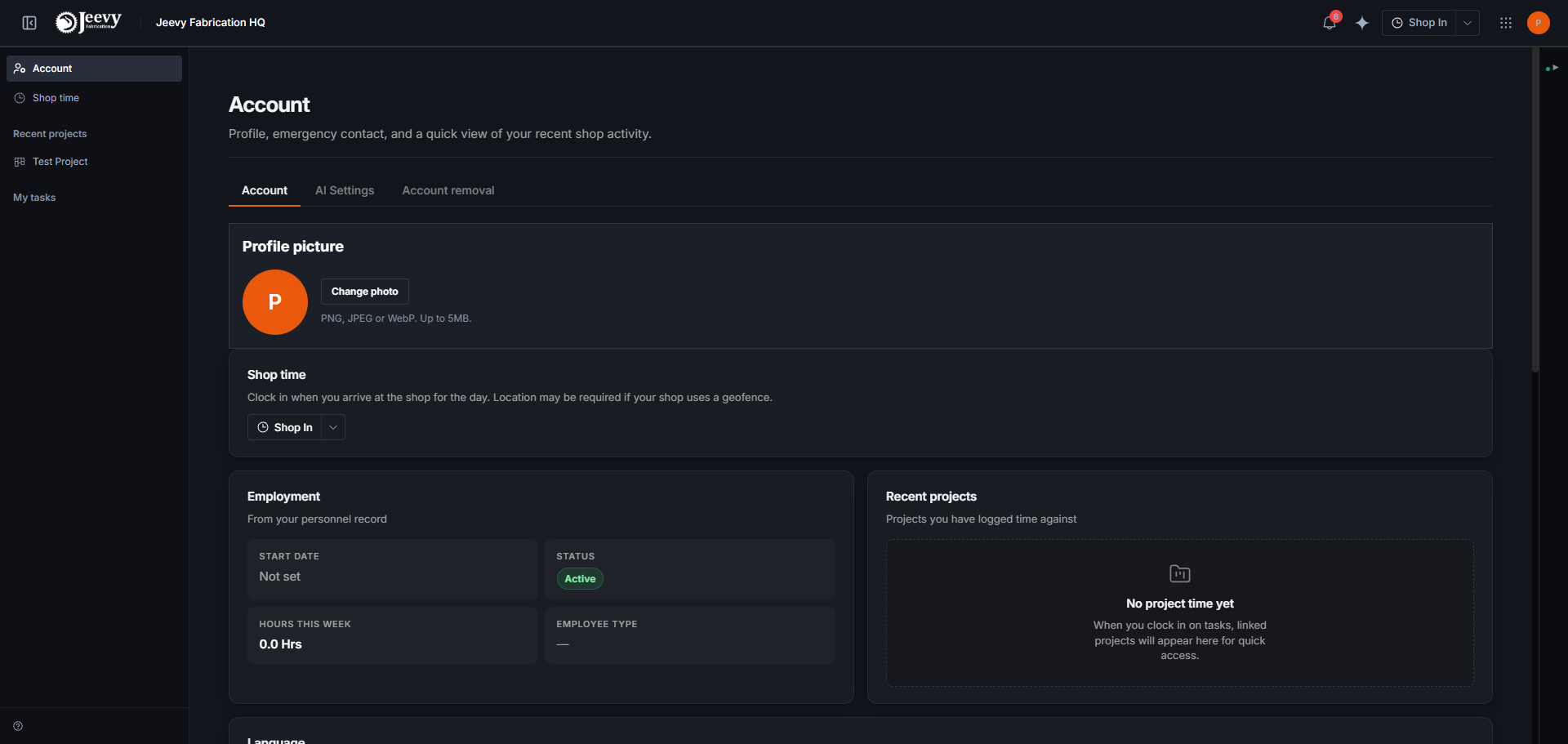
What is on the Account tab
- Your picture. The one field here that is part of your login rather than your personnel record, so it works even when the roster is slow to load.
- Shop time. A clock-in control, when your shop uses one. Your location may be required if your shop runs a geofence.
- Employment. Read from your personnel record: start date, role, employment type. If it is wrong, a manager changes it in Your people.
- Recent projects. A short list of what you have been on lately.
- Contact and emergency. Your name, phone and emergency contact. These save back to your personnel profile.
Appearance
Jeevy comes in dark and light. Dark is the default, and it is the one the app was designed in; light exists for a bright office or a glare-washed panel where a dark screen becomes a mirror.
There are two places to change it, and they are deliberately not the same control:
| Where | What it changes |
|---|---|
| Appearance, on this screen | The theme you get on every device you sign in on |
| The switcher at the foot of the sidebar | The screen in front of you, and nothing else |
The sidebar switcher is the one you want on a shared shop terminal: flipping it to light for an afternoon does not follow you to your own laptop, and it does not change what the next person to sign in on that terminal sees. The setting on this screen is the durable one. Saving it also applies it to the device you saved it from, so you are not left looking at the mode you just changed away from.
Language
One choice, and it covers both the app and the messages Jeevy sends you. Changing it here changes your notification emails and texts too, so a Spanish-speaking welder gets Spanish alerts rather than an English app translated in their head.
Notifications
Two switches: Text messages and Email.
| Channel | What it carries |
|---|---|
| Text messages | Urgent shop updates to your phone. You can reply STOP at any time. |
| Daily summaries and mention alerts, to your login email. |
AI Settings
Assistant Preferences is a short list of standing rules the assistant applies to you: "always give me dimensions in metric", "call me Joe". It is the difference between correcting the assistant every session and correcting it once. See The assistant.
What Jeevy remembers
Below your preferences is everything the assistant has picked up about you on its own, in three groups:
| Group | Where it comes from | What you can do |
|---|---|---|
| Learned from your chats | Something you told the assistant, with the chat it came from | Edit, forget, see its history |
| Inferred from your work | A habit noticed in your task history, such as who you usually assign welds to | Forget |
| Notes from past chats | A short summary of a decision from an earlier conversation | Forget |
Your Personal Rules are not repeated here; they stay in Assistant Preferences above.
When you say the same thing again in different words, Jeevy keeps one memory and updates it rather than storing a second copy. When you change a value, say from 316L to 304 stainless, the new value replaces the old one instead of both sitting side by side.
Edit fixes the wording. The assistant uses your version from the next message on, and the old wording never comes back. History shows every change: when it was learned, updated in a chat, edited by you, or forgotten.
These memories are private to you, but shop admins can see them too. The same panel is in the kiosk's account settings.
Email Audit Settings on the same tab is your own view of the intake agent. The shop-wide instructions are a separate thing and live in Shop Overview, under Settings. See The inbox agent.
Integrations, and leaving
Integrations appears when your shop has the module, and is where a mail account is connected.
Account removal is a link rather than a tab. It explains how to request deletion of your account, which is a support request rather than a button: nothing is deleted by opening the page.