
The assistant
What the AI can do on a job, what the intake agent does on its own, and the line neither of them crosses.
Two different things get called "the AI" around here, and they behave nothing alike. One waits to be asked. The other works whether or not anyone is looking.
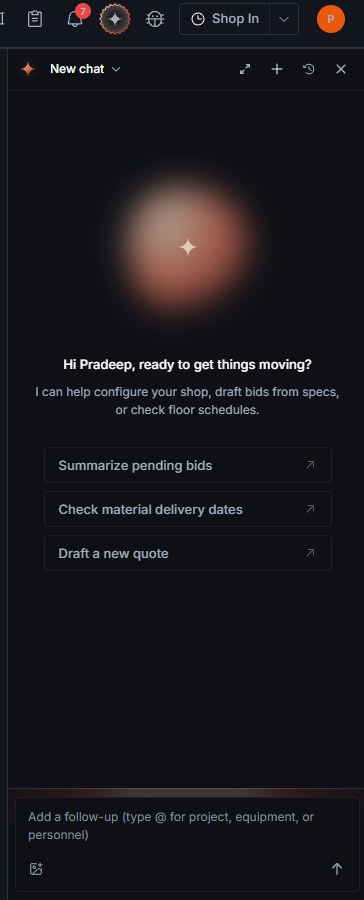
The assistant, which you ask
A chat that can see the job you have open: its tasks, its materials, its people and its documents. Ask it about the job and it answers from the job, not from general knowledge.
It can also act. Creating and updating tasks, assigning people, linking material and adjusting scheduling are things it can do rather than just describe, so "move the weld tasks out a week and tell me what that breaks" is a request, not a search.
Attach files with the paperclip, or paste an image. The assistant can read PDFs, Word (.docx), Excel (.xlsx, .xls), PowerPoint (.pptx), CSV and plain text files, up to 50 in one message and 25 MB each, on the shop chat and on a quote or a job. The files upload when you press send; if one fails, your message stays in the box and sending again only uploads the ones that failed. The assistant reads the pages it needs, so many long files do not make the message too long, and you can ask about them again later, even in a new chat ("the Acme PO I sent yesterday"). A file you attach in the shop chat is only visible to you; one you attach on a quote or a job can be read by anyone who can see that quote or job, and follows its export-control setting. Either way it does not appear in the job's Files. It stays available, so you can ask about it again later. Other types, such as drawings in STEP, can only be attached when the message @-mentions a project or quote to save them on.
Type @ at the start of a word to point at a file on the job, or at a project, quote, piece of equipment, or person in the shop chat. An @ in the middle of a word, such as an email address, does not open that list. If the shop message names a job or a quote, the file is also saved on that record.
How long a chat can run
A chat remembers everything in it, including the data it pulled to answer you. That is what lets you say "and subtract the ones over ten hours" without repeating yourself. It also means a chat has a size, and asking for a lot of data several times fills it faster than talking does.
When a chat gets big, the assistant sets aside the data it fetched in earlier answers and keeps what was actually said. Nothing disappears from your screen and you do not need to do anything. If it needs those numbers again it looks them up again, which is why a long chat can pause to re-run a lookup it already did earlier.
A chat that cannot be trimmed any further says so and asks you to start a new one. Use the + at the top of the panel. The old chat stays where it is and stays readable; starting a new one is the way to get a clean, fast thread, not a way to lose the old one.
Each chat has its own name. One you start with + is called New Chat. To change that, open the chat list and use the pencil beside its name.
On a quote or a job, the status chip in that header (Idle, Running, Awaiting input) opens pipeline activity for the record. The panel drops down from the chip. The X closes it.
Your preferences
The standing rules you set under Account, AI Settings, Assistant Preferences ("keep answers short", "give me dimensions in metric") apply in every chat you have with the assistant in the app: on a job, on a quote and on the dashboard. It can also draw on what it has learned about you over earlier chats.
Neither is used when the assistant answers an email or a text message. A reply that leaves Jeevy is written for the person receiving it, so it never carries your personal rules or anything the assistant remembers about you.
Saving a message
A reply worth keeping, a client requirement stated in passing, a number you will need again, does not have to be found by scrolling back through the chat later. Hover a message and press the bookmark icon beside it to save it, with an optional title. Saving an answer also offers to save the question that produced it, so the pair reads back together.
Saved messages are stored on the job, not the chat. They show up in a Saved messages section on the job's Description tab (and the equivalent tab on a quote), visible to anyone on the job, and they stay there even after the chat itself is cleared or trimmed. Anyone with edit access to the job can remove one.
Keeping a draft
When the assistant proposes a materials list, chat drafts of it as you go. A Drafts from this chat panel shows the current draft with a Save to project (or quote) button, so you can keep a version before it changes again or the chat is cleared.
Clearing a chat now always asks first, and shows any drafts still waiting to be kept. Pick the ones you want, and they are saved before the chat is cleared, not lost with it. Everything you keep, from a chat draft or from the clear-chat prompt, shows up in a Kept drafts section on the job's Description tab (and the equivalent tab on a quote).
The intake agent, which you do not
Incoming email is read and routed onto the job it belongs to, with no prompting from anyone. That is why threads appear in Email on a job that nobody filed by hand.
Everything it did is inspectable in Email Audit: what arrived, what it matched on, and where it put it. If a thread landed on the wrong job, that screen is where the reason is.
What neither of them does
Nothing is sent on your behalf. The intake agent routes mail inward; it does not reply.
It does not reshuffle the schedule to make problems disappear. That is the scheduler's rule, and the assistant is bound by it too: it will tell you a date cannot work, and it will change a date if you ask, but it will not tidy a conflict away on its own.
When to use it
The assistant is worth reaching for when the answer spans things that live on different screens. "Which tasks are waiting on material that has not shipped" is a question about Purchasing, Receiving and Tasking at once, and it is faster to ask than to open three tabs.
For anything on one screen, the screen is usually quicker.