
File Manager
Drawings, specs and vendor documents for this job, with folders that carry access rules and a preview that opens in place.
Every document for the job in one tree. Folders are not just tidiness here: a folder carries access, so where a file sits decides who can see it.
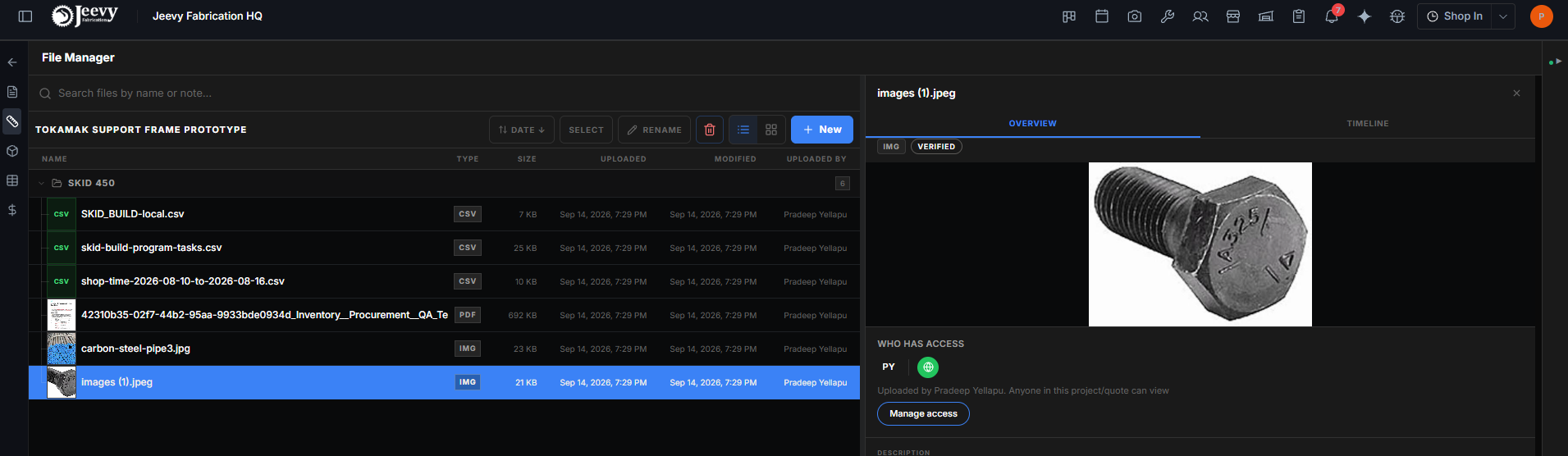
What you can upload
Anything. Drag files in or use the upload picker, and File Manager stores whatever you give it: drawings, models, photos, videos, spreadsheets, a scan from the shop floor, a file whose type nobody here has heard of. Nothing is refused for its type. The one limit is size: 500 MB per file and 2 GB per batch.
A .zip file uploads as one file and stays. To unpack it, right-click it and choose Extract here: a new folder named after the zip appears beside it, and the server fills it with everything inside, keeping the zip's own folders. You can keep working or close the tab while it runs. A zip inside the zip is kept as a file, not unpacked, and system clutter such as __MACOSX and .DS_Store is left out. One zip can hold up to 2,000 files and 5 GB unpacked.
What you can see in the preview pane depends on the file:
| Kind | Formats | What you get |
|---|---|---|
| Documents and spreadsheets | PDF, Word, PowerPoint, Excel, CSV, images | The document viewer, with markup tools on a PDF |
| 3D models and CAD | STEP, IGES, STL, OBJ, DXF, DWG, Inventor, SolidWorks (.sldprt, .sldasm), Navisworks (.nwd, .nwc) | The 3D viewer. The first open starts the translation and waits for it; every open after that is instant |
| Video and audio | MP4, MOV, WEBM, MP3, WAV, M4A | A player in the pane. A MOV encoded as HEVC plays in Safari only |
| Plain text | TXT, JSON, Markdown, logs, XML | The text, as it is |
| Everything else | A card with the name, size and type, and a Download button |
Only some of these feed the job's reading. A PDF, a spreadsheet, a Word file, an image, and a STEP, IGES, DXF or DWG drawing are read into the project as before. A SolidWorks, Navisworks or Inventor model, a video, an audio file, or any type outside that list is stored and shown, and its status reads Not readable instead of Verified. That is a fact about the file, not a problem with the upload. A file over 500 MB, a PDF over 500 pages, or a photo over 3.75 MB is also stored but Not readable: the AI does not read files that large. Select the file to see which limit it hit.
Pick a whole folder and it arrives as real folders here, subfolders included, rather than one archive somebody has to download and open to find out what is in it. Uploading into a folder puts every file in that folder, and an upload never changes what is already there: you get exactly what you picked, a file under the name you gave it and a folder as a new folder, even beside one of the same name. Sent a package twice? Delete the copy you do not want. To replace a drawing, use Add revision on the file instead, so its history stays in one place.
Drawings and revisions
Drawings change. Instead of uploading a new copy beside the old one, add a revision to the existing file so its history stays in one place.
- Add revision uploads a new version of a file, and the newest version becomes the current one.
- Manage versions shows every version of a file. You can open an earlier version or restore it, and a restored version is labelled as restored from an earlier revision.
- A file's timeline shows its activity, and a dot marks activity you have not seen yet.
When a quote converts to a project, its files move to the project with their history.
Select several, act on all of them
Turn selection on and pick any number of files. Right-click the selection to move them, or to make a folder out of them in one step: Create folder from N files makes the folder at their level and moves the whole selection into it. On a narrow screen, download, delete, rename, and move sit in the Actions menu next to the selection count.
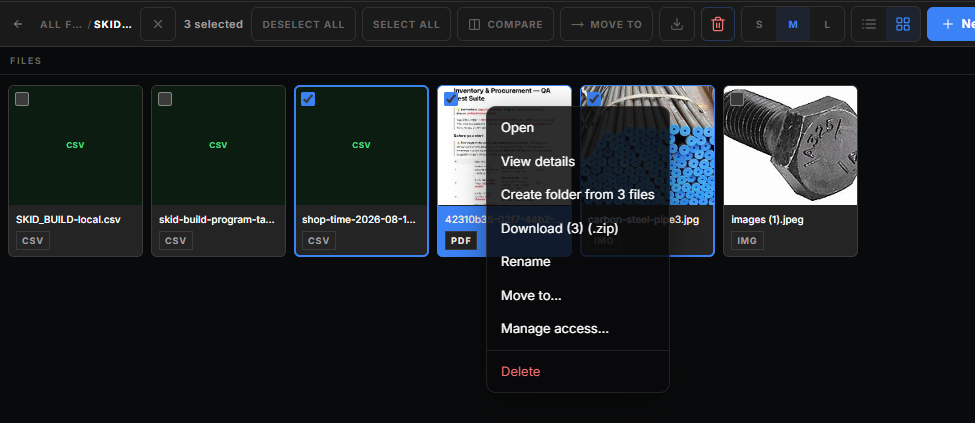
That is the fastest way to impose structure on a folder somebody dumped forty files into.
Deleting works the same way for one file, a folder or a whole selection: one step, done on the server, so you can leave the page while it finishes. A folder goes with everything inside it that you are allowed to delete. Anything that must stay (a file a purchase order or a note owns, a file linked to a task, or something you do not have access to) stays where it is, and so does the folder holding it; the message after the delete says what was kept and why. To delete a file a task links, unlink it on the task first.
Moving things
Drag a file or folder onto the empty strip below the list to move it back to the top level. It is a drop target, not padding.
Access
A file starts as anyone in this project. The moment you add one named person, it switches to Restricted, and everyone else stops seeing it in their list at all.
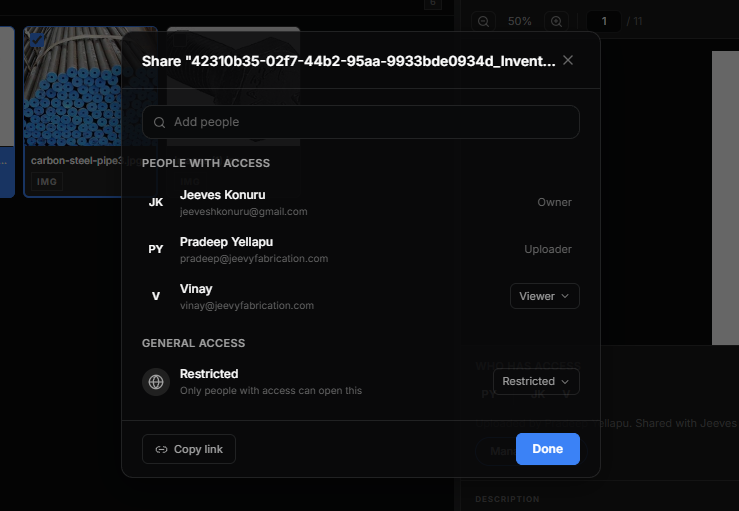
A folder can be made private the same way, and anything inside it is private while it is inside. A viewer can open and download the item; an editor can also change who has access to it. Shop owners always have access to everything and are not counted as people an item is shared with.
A file also keeps its own setting. When you open a restricted folder to Anyone, Jeevy asks whether the files inside should follow; choose Folder and files to open them too, or Folder only to leave each file as it is.
Export-controlled (ITAR) jobs
Jobs that carry export-controlled technical data, such as ITAR work, need tighter handling. Jeevy handles this per job.
- Marking a job. Set a quote or project to Export Controlled when you create it, or mark an existing job later. Jeevy asks you to confirm that the job contains export-controlled technical data.
- Separate storage. Files for export-controlled jobs are kept in a dedicated secure storage bucket, apart from commercial files. Changing a job's classification moves its files between the two, and the files are locked while the move runs.
- Who can see it. Only people marked as US Persons can see export-controlled quotes and projects or open their files. Everyone else does not see those jobs in their lists and cannot get a download link for their files.
Set each person's export authorization on their profile in Personnel.
Preview opens in place
Drawings, PDFs and images open beside the list rather than downloading. You can read a drawing without leaving the tree you were looking at, which matters when you are checking five of them against each other.
Details under the preview holds who can see the file, its description, and the facts: uploader, source, and dates. Click Details to fold that block shut so the preview can use the space. The choice lasts for this browser session, so the next file you open stays folded the same way. A new session opens it again.
Mark up a PDF or photo
Open the file in the full document viewer. On a wide screen the tools sit in a rail on the left of the sheet. On a narrow screen they sit in a row across the top, so the sheet underneath can still scroll. The tools start with Select, then a pen, a highlighter, text, a box, and an eraser. V selects, P is the pen, H highlights, T is text, B draws a shape, and E erases. The pen draws a thin line. The highlighter lays down a wide translucent stroke. The box drags a filled rectangle. Right-click the box and choose Circle to drag an ellipse instead. Text is typed on the sheet in the current color. Enter starts another line, and clicking away keeps it. Click the text again to edit it. The size slider beside Text changes the letters while you type, and it changes a text mark again after you select it. The color button opens a color wheel, a shade slider from black to white, and a hex field. Colors already used on the sheet are listed under the wheel, then the standard colors. A selected mark takes the color you pick. Select grabs a mark from this session, text or shape, and you drag it to a new place. Click the page away from the mark and the selection drops. A selected box, circle, or text mark has the same handles on its corners and edges, and a rotate handle above the box. Dragging a text handle changes the letter size. A slider beside Select sets how solid a box or circle fill is. Text stays upright when you rotate the page, so a quarter turn of the sheet turns the letters and they still read left to right. Save version and the annotated download keep that same orientation in the file. Choose the pen, highlighter, or box and a slider with a number appears beside the tool. That sets the line thickness before you draw. Erase partial is the eraser you get first: it rubs out part of a pen, highlighter, or line. Right-click Erase and choose Erase full to remove a whole mark. Undo, or Ctrl+Z, steps back one mark. Word, Excel, and PowerPoint do not get these tools.
Two ways to keep what you drew:
- Save version stores the marked-up file as the next version of that same file. The previous version stays in version history. The menu on that button has Timeline, which posts the marked-up file as an attachment. The current version is unchanged. Beside it, vN is the version on screen. Open it for the version history already used from Overview: every earlier copy, and the controls to restore one.
- Download on the viewer, once you have drawn something, offers the annotated file next to the original. The same choice appears on Download in the details panel.